Client Page
The information you provide here is used to create and send invoices, as well as providing somewhere for you to keep track of you clients, their pets and any specific details you need to make your job easier.
Managing Clients
Create a Client
From the Clients page, select the Add button: 
Enter all the information you have about your clients:
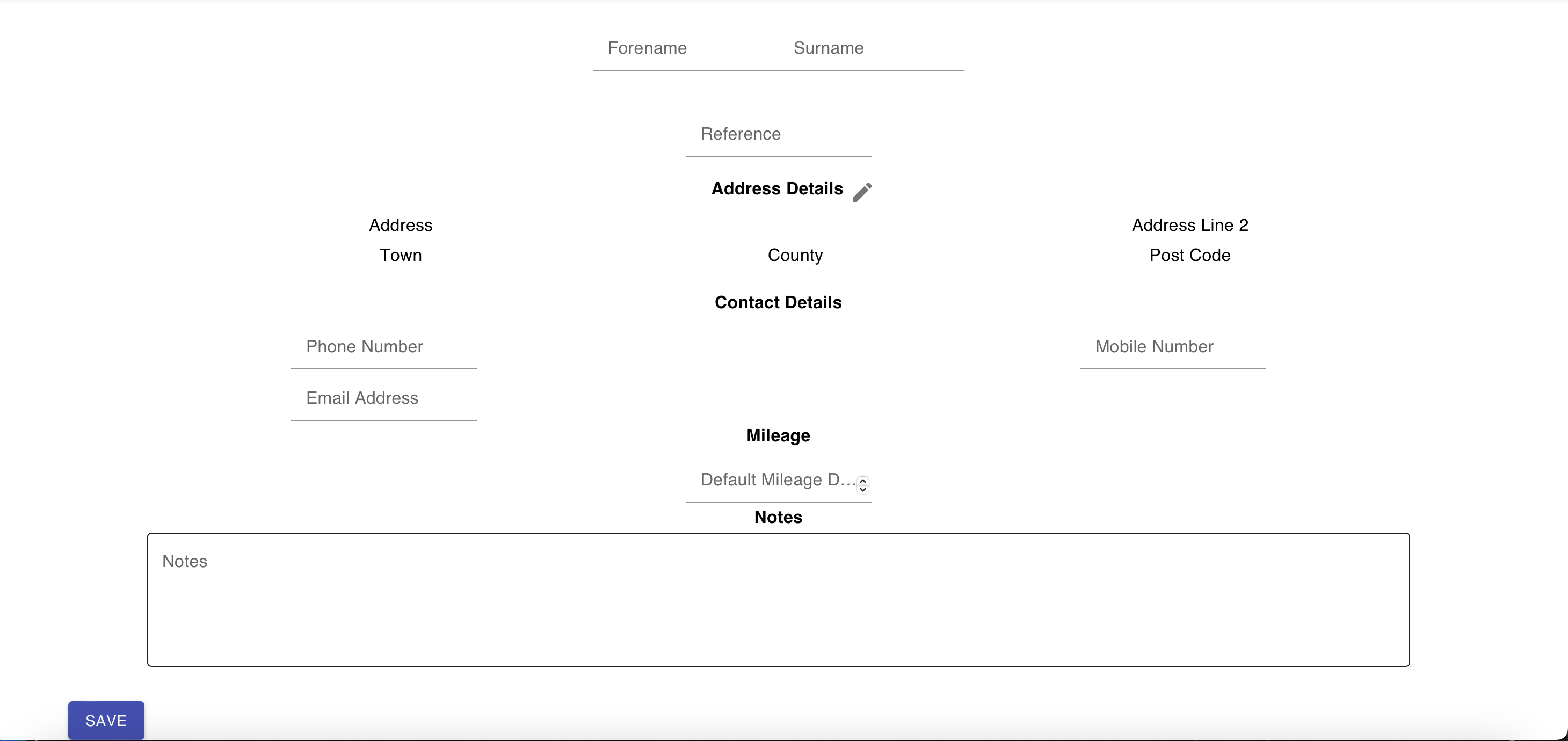
Address Details
The address details can be edited by selecting the pencil Edit icon  . The popup then allows you to do an address lookup by entering a house number or name and the post code, alternatively you can manually input the address.
Default Mileage
The default mileage is used to calculate your milage cost when adding a service to that client's invoice. The value provided here is used unless you enter something different when recording the service. For example, you may usually pick up their pet from their house so have to travel 5 miles, so set that here, but for a week you have a nearby stop and therefore group them together and so only charge this client for part of the journey, that distance can be set when creating the specific activities for that week.
Deleting a Client
A client can be deleted by selecting the bin Delete button. This will remove them from this page and you won't be able to create any new invoices for them. However all previous invoices will remain. Contact us if you require access to invoices for a deleted client.
Managing Pets
Within the client's page you are able to manage their pets. This allows you to record useful information about the type of pet e.g. who their vet is, if they have vaccinations and any other notes you may need.
Add a Pet
From a client's page select the Add Pet button. This will add a card that contains fields you can fill in about the pet.
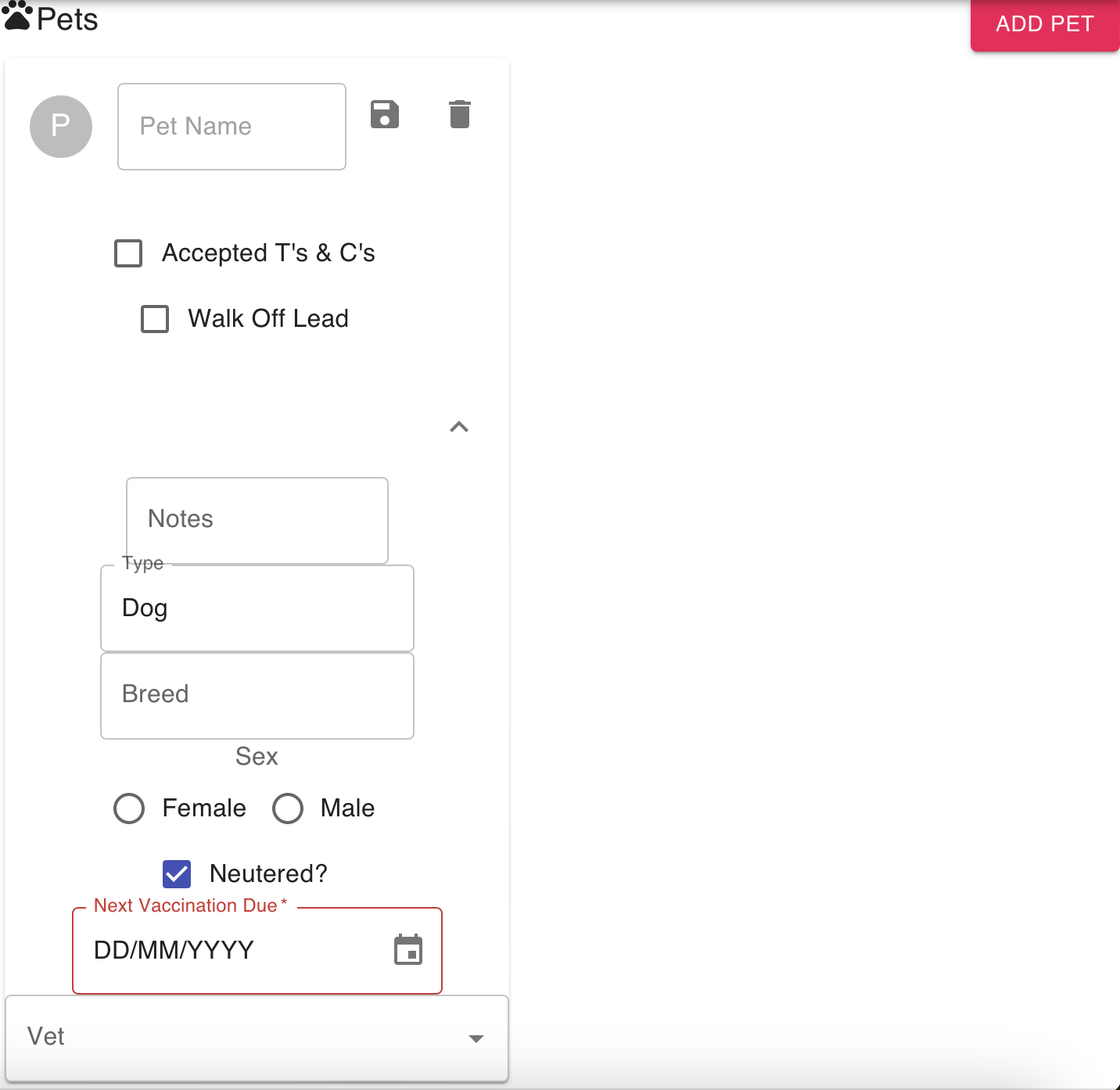
The following information can be added about a pet:
- Pet name
- Accepted T's & C's - if you have terms and conditions you expect your clients to accept you can record acceptance here
- Walk Off Lead - whether this pet can be walked without a lead (presuming it's a pet you walk!)
- Notes - any information you may need to keep to hand about the pet
- Type - whether it's a dog, cat, hamster or anything else
- Breed - if you want to keep a log of the breed
- Sex - male or female sex of the pet
- Neutered - whether they've been neutered, if applicable
- Next Vaccination Due - the date of the next required vaccination, or vaccination you need to be aware of to safely interact with the pet
- Vet - select a vet that this pet is registered at. You can update the list of available vets on from the Vet page
Whenever you edit the pets details, ensure you select the Save icon at the top of the card. 
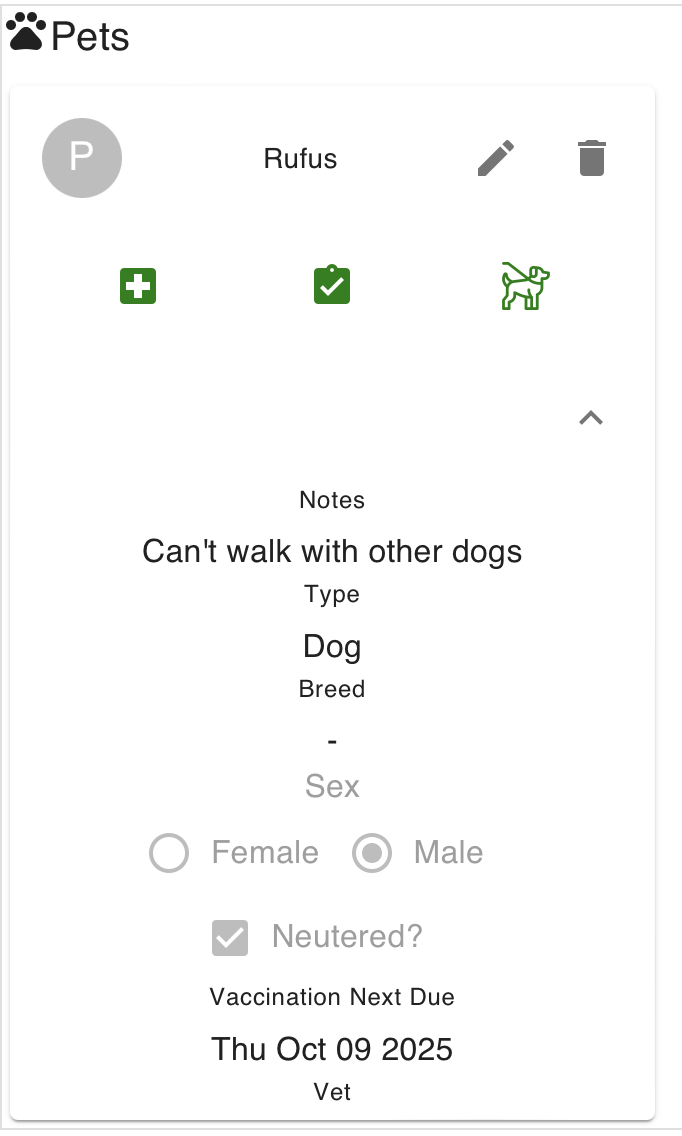
A pet card may then look like this:
Editing a Pet
Use the pencil Edit button to make changes to a pet
Deleting a Pet
A pet can be deleted by selecting the bin Delete button  . This will permanently remove them from the client.